
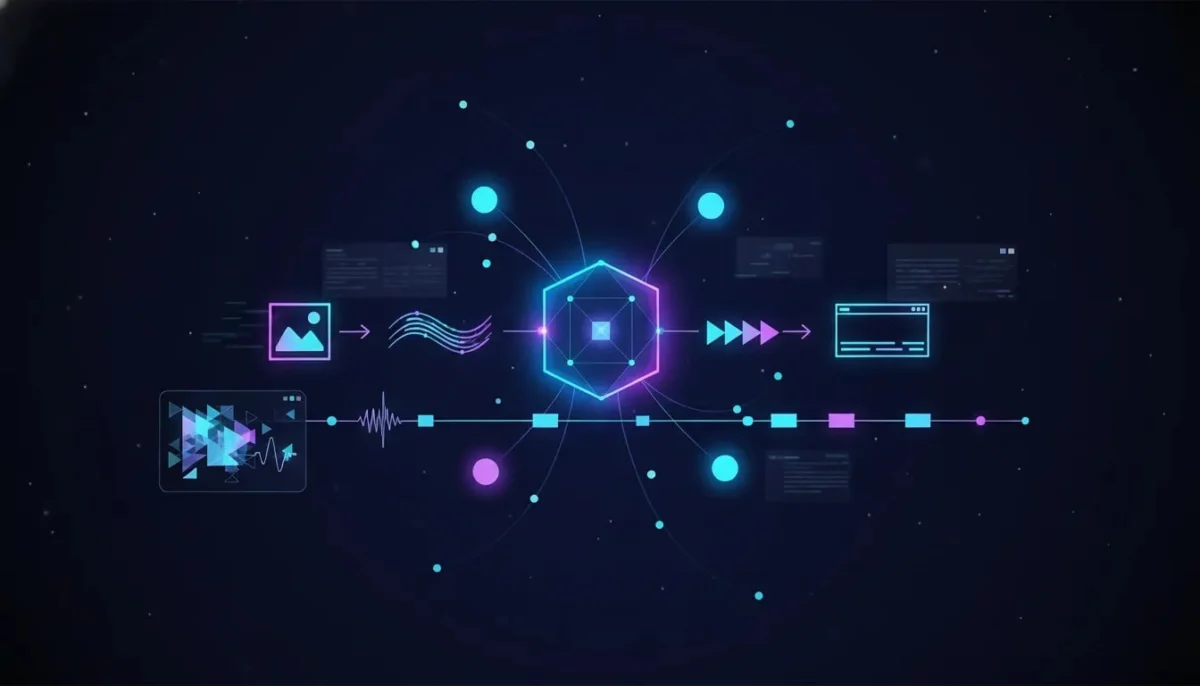
If you have been piecing together one AI app for images, another for video, another for voice, and a completely different one for editing, there is now a much easier option. Abacus Studio by Abacus AI brings more than 50 AI models into one place so you can create ads, product videos, faceless documentary content, animated clips, lip-sync videos, and even multi-scene story videos without bouncing between tools.
What makes this especially interesting is not just the number of models. It is the workflow. You can start with a simple idea, have the platform enhance your prompt, generate the image, turn that image into video, add audio, edit the result, and stitch scenes together, all inside one interface.
That means less tool juggling, less prompt engineering, and a much faster path from concept to finished content.
What Abacus Studio Actually Does
At a high level, Abacus Studio is an AI creation platform that gives access to top-tier image models, video models, and speech models through a single dashboard. Instead of subscribing to multiple standalone tools, you can work from one place and let the system either auto-select the right model or choose one manually.
Here are the main capabilities highlighted inside the platform:
- Generate images from text prompts
- Create videos from text, images, or existing videos
- Turn still images into motion content
- Apply AI lip sync
- Generate audio for content
- Edit images and videos
- Upscale images and videos
- Transfer motion from one video to another character or asset
- Stitch multiple scenes together into longer videos
That combination is what makes the tool feel different. It is not just another text-to-image generator. It is a full content production system.
Why This Tool Stands Out
The biggest advantage is simple: you do not need to know which model is best for every task.
Abacus Studio includes an auto mode that figures out whether your prompt should become an image or a video and which model is most suitable for the style you want. If you want something photorealistic, it can choose a model optimized for realism. If you want anime or comic-book visuals, it can choose something better suited to that look.
That matters because most people do not want to spend hours comparing model strengths, writing highly technical prompts, and rebuilding the same project in three different apps.
There is also a built-in prompt rewrite feature. Instead of forcing you to write long, ultra-detailed prompts from scratch, the platform can automatically enhance your input for better output quality. So a rough idea can become a much more polished generation prompt behind the scenes.
How the Workflow Works
The platform supports a few different creation paths depending on what you are trying to make.
For images
- Enter a text prompt
- Let the system auto-detect the best setup or choose image mode manually
- Select number of images
- Choose aspect ratio
- Set resolution
- Use prompt enhancement if needed
For videos
- Text to video
- Image to video
- Video to video
- Lip sync
Within video generation, you can also control:
- Aspect ratio
- Resolution
- Duration up to 12 seconds per scene
- Prompt rewrite
- Audio generation
- Camera behavior
- Seed settings for reproducibility
That 12-second limit applies to individual scenes, not necessarily the final finished project. One of the more useful capabilities here is that Abacus Studio can generate multiple scenes and stitch them together into a longer video.
Use Case 1: Create Product Ads With an AI Influencer
One of the strongest demonstrations is product marketing.
A simple prompt can describe a person sitting in a casual home environment, holding a product such as a skincare bottle, tech gadget, or book. Add details like natural window lighting, authentic framing, realistic skin tones, and an everyday home background, and the platform can first generate the image and then turn that image into a short promotional video.
This matters because ad creatives often need content that looks natural, not overly polished. The prompt used here deliberately asked for:
- A casual home setting
- Natural side lighting
- Slightly imperfect framing
- Realistic photography
- Authentic background details like bookshelves and plants
The result was a realistic short-form product promo featuring an AI-generated creator speaking about skincare. The workflow happened in two stages:
- The platform created the setting and still image
- That approved image was converted into a speaking video with audio
This is a big deal for brands, creators, and agencies because it opens up several possibilities:
- Generate social media ads quickly
- Create multiple creative variations without booking a shoot
- Produce user-generated-content style promos at scale
- Test different product angles faster
If your goal is to make content that feels native to short-form platforms, this kind of workflow can save a huge amount of time.
Use Case 2: Turn Characters Into Animated Content
Another really powerful feature is motion transfer.
For example, you can generate an anime-style character in a neutral full-body pose. Once you have the character design, you can upload a reference dance or choreography clip and have the AI transfer that movement onto the generated character.
So instead of animating from scratch, the platform can recreate the motion using your custom character.
This opens up a lot of creative directions:
- Animated social content
- Virtual characters
- Dance clips and trend-based content
- Character performance tests
- Stylized short videos
The key takeaway is that the tool is not just creating static visuals. It can map movement in a way that makes custom characters feel alive.
Use Case 3: Create Documentary-Style B-Roll and Faceless Content
If you create faceless content, educational videos, travel-style edits, or cinematic reels, this may be one of the most practical features.
By describing a scene such as Icelandic waterfalls and Norwegian fjords in a cinematic nature documentary style, with golden hour lighting, ultra-detailed realism, and a wide-angle perspective, the platform first generates the image and then animates it into a documentary-style clip.
What is impressive here is how useful this becomes for content production:
- B-roll for explainer videos
- Background footage for documentary narration
- Nature content for social platforms
- Atmospheric visuals for storytelling channels
Traditionally, getting this kind of footage would mean traveling, licensing stock clips, or using expensive equipment like drones. Here, it starts from a prompt.
The platform also chooses the model based on the task. In the examples shown, different prompts triggered different image models depending on the style needed. That is one of the hidden strengths of the auto mode. You are not locked into one engine trying to do everything.
Use Case 4: Create Hyper-Realistic Wildlife Visuals
Photorealism is where many AI tools still fall apart. Feathers morph. Fur gets weird. Motion consistency breaks. Colors feel synthetic.
One example tackled that directly by generating a hyper-realistic Indian peacock as if it had been photographed by a professional wildlife photographer using a DSLR.
The still image looked convincingly real, and the explanation behind the model choice was important: Flux was selected because it excels at photorealistic rendering and precise color reproduction.
Then the image was animated into a 10 to 12 second cinematic video with very specific instructions:
- Lock the first frame as the identity reference
- Maintain temporal consistency
- No morphing between frames
- No changes to feather structure or count
- Keep motion biologically accurate
- Add subtle natural movement like head bobbing and feather motion
This is a great reminder that while the platform can help simplify prompts, being specific still helps when you want realism. The final result was a moving peacock clip that held together visually without the common AI-video artifacts people are used to seeing.
Use Case 5: Make Horror Scenes and Multi-Scene Story Videos
The final example pushes into cinematic storytelling.
A prompt described a dark, grainy comic-panel style horror scene featuring an eerie figure in an abandoned hallway, with creepy lighting, heavy grain, black and white contrast, and red accents. The goal was not photorealism. It was stylized horror.
The platform generated the artwork using a model chosen for that type of aesthetic task, then turned it into a horror web-comic style video.
What makes this more than a one-shot gimmick is that the system generated multiple scenes and stitched them together into a more complete narrative sequence with voiceover.
That means you can think beyond short clips and start using the tool for:
- Mini horror stories
- Motion comics
- Story-driven social series
- Concept trailers
- Narrated visual storytelling
If you want to build content with pacing, scene changes, and atmosphere, that stitched workflow is a serious advantage.
Why Auto Model Selection Is a Bigger Deal Than It Sounds
There is an important pattern across all these examples.
When the prompt focused on a realistic human, the platform used one model. When the prompt was anime, it used another. For documentary landscapes, it selected something different again. For wildlife realism, it leaned on a model suited to precise rendering. For comic-style horror, it changed once more.
That is exactly how a strong AI creation workflow should work.
Most creators do not want to manage a spreadsheet of which model performs best for people, landscapes, animation, stylized illustrations, and motion consistency. Abacus Studio abstracts that away while still giving control to advanced users who want to choose manually.
In practical terms, this means:
- Less guesswork
- Faster iterations
- Better default output quality
- Less need for multiple subscriptions
Best Ways to Use This Tool
If you are wondering where this fits into a real content workflow, these are the clearest use cases:
- Marketing teams creating ad concepts and product promos
- Creators making short-form content, faceless videos, and animated clips
- Agencies producing fast drafts and campaign variations
- Storytellers building stylized scenes or motion comics
- Educators and documentary channels needing cinematic visuals and B-roll
- Experimenters who want one platform to test many AI media models
Tips for Getting Better Results
Even with auto-enhanced prompting, the quality of your request still matters. A few patterns from the examples are worth copying:
1. Describe the setting clearly
Do not just say “make a product ad.” Specify the room, lighting, framing, and background details.
2. Ask for the style you want
Use phrases like photorealistic, documentary-style, anime, comic-book aesthetic, or wildlife photography if that is the direction you want.
3. Include realism constraints for video
If consistency matters, say so directly. Mention no morphing, maintain identity, preserve structure, and keep motion physically accurate.
4. Review the generated first frame
Since the tool often uses a first image before creating the video, make sure that frame is right before approving it.
5. Use feedback loops
If the result is close but not perfect, adjust and regenerate. The platform supports that workflow rather than forcing you to restart somewhere else.
Suggested Media to Include in This Article
To make a published version of this article more engaging and SEO-friendly, consider adding:
- An image of the Abacus Studio dashboard with alt text: Abacus Studio AI dashboard with image video and audio generation tools
- A product-ad example still with alt text: AI-generated influencer product ad created with Abacus Studio
- A documentary-style landscape still with alt text: Cinematic AI-generated Icelandic waterfall landscape in documentary style
- A wildlife example with alt text: Hyper-realistic AI peacock image generated with Flux model
- A horror storyboard still with alt text: Comic-style horror scene created in Abacus Studio using AI
If this article is being published on a larger site, it would also make sense to add internal links to related content such as AI video tools, prompt writing guides, AI image generation comparisons, or tutorials on faceless content creation.
Final Thoughts
There are a lot of AI content tools right now, but most of them solve one narrow piece of the puzzle. Abacus Studio is interesting because it brings the pieces together.
You can start with a prompt, generate an image, turn it into a video, add speech or sound, edit the result, upscale it, and build multi-scene content without leaving the platform. On top of that, the auto model selection removes one of the biggest friction points in AI creation.
For anyone trying to create movies, ads, faceless content, animated clips, or social media assets with AI, this is the kind of workflow that can dramatically speed things up.
If you want one tool that gives you access to 50+ AI image, video, and audio models without needing deep technical knowledge, this is absolutely worth exploring.
Got a use case in mind for AI-generated ads, cinematic B-roll, or animated storytelling? Test it, compare a few outputs, and see how far you can push it.
FAQ
What is Abacus Studio?
Abacus Studio is an AI content creation platform from Abacus AI that gives access to more than 50 image, video, and speech models in one interface. It can generate images, create videos, add audio, lip sync, edit content, and upscale media.
Can Abacus Studio create both images and videos?
Yes. It supports image generation, text-to-video, image-to-video, video-to-video, and lip-sync workflows. It can also help convert a generated image into a short video automatically.
Do I need prompt engineering skills to use it?
No. One of the main benefits is that the platform can rewrite and enhance prompts for better outputs. You can start with a relatively simple idea and let the system improve it.
How long can AI videos be in Abacus Studio?
Individual video scenes can be created up to 12 seconds, but the platform can stitch multiple scenes together, which allows you to build longer videos.
What kinds of content can I create with it?
You can create product ads, AI influencer videos, documentary-style B-roll, faceless content, animated character clips, wildlife scenes, horror stories, and other stylized or cinematic media projects.
Does Abacus Studio automatically choose the best AI model?
Yes. In auto mode, the platform can select the model it believes is best for the specific task or style, such as photorealistic imagery, anime visuals, or stylized comic scenes.
Can I use Abacus Studio for faceless YouTube content or social media clips?
Yes. It is well-suited for faceless content, especially if you need cinematic B-roll, documentary visuals, animated sequences, or narrated scene-based videos without filming original footage.
SEO Meta Information
Meta description: Discover how Abacus Studio uses 50+ AI models to create movies, ads, product videos, faceless content, and cinematic clips automatically.
Suggested categories: AI Tools, AI Video Generation, Content Creation, Digital Marketing
Suggested tags: Abacus Studio, Abacus AI, AI video tool, AI image generator, AI ads, faceless content, AI movies, AI content creation, text to video, image to video
Call to action: If you are experimenting with AI content workflows, try building one short project in Abacus Studio and compare how much faster it is than using separate tools. Then share what you created or explore other AI creation guides on this site.